Building a Conversational Hostel Booking App with Konsier Node SDK
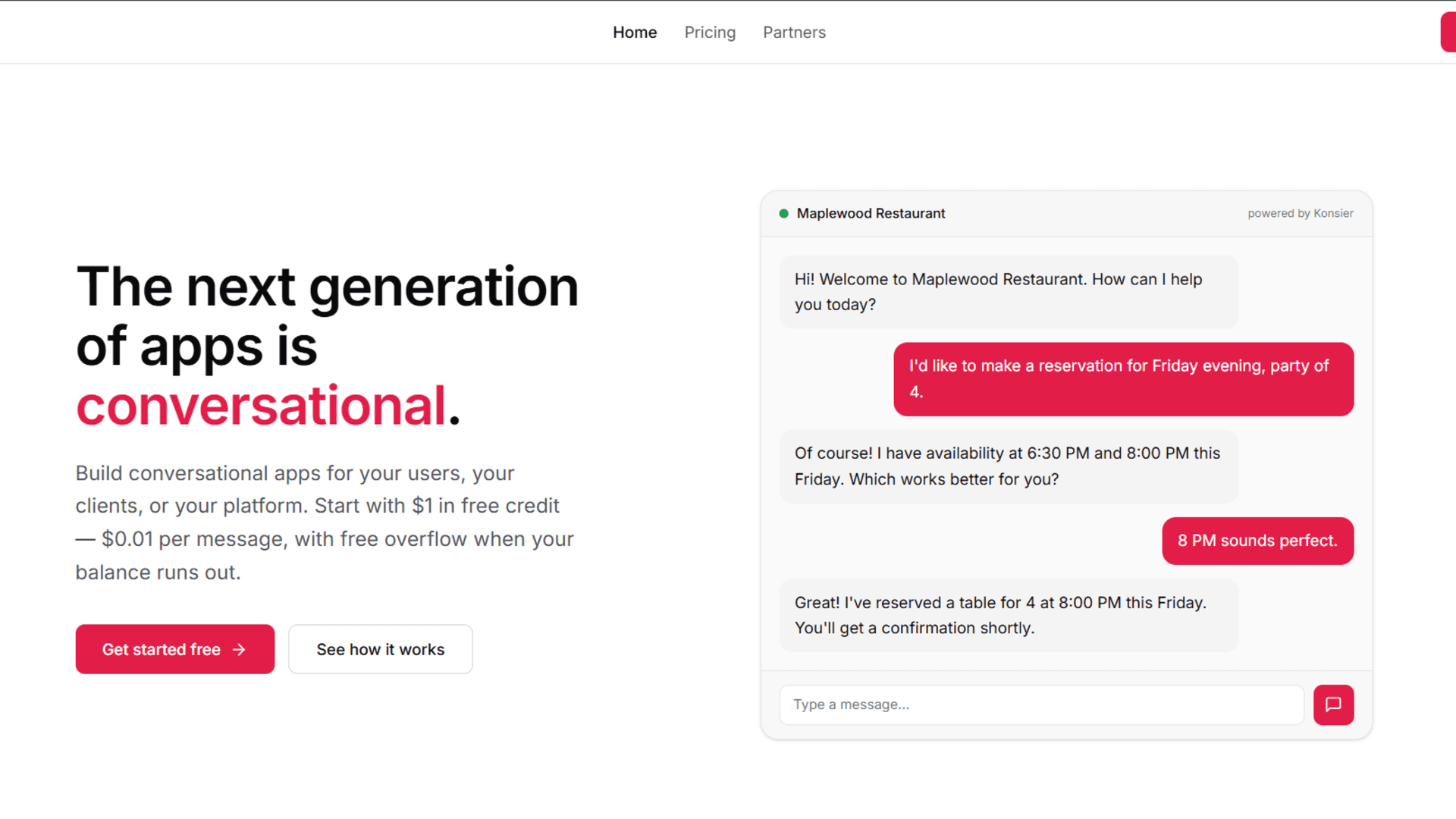
Modern apps are moving beyond traditional UI into conversational experiences. Instead of clicking buttons, users can simply chat to book services.
In this guide, we’ll take a simple hostel booking mobile app idea and turn it into a Telegram chatbot using the Konsier Node SDK.
What We’re Building
We’ll convert a normal hostel booking flow into chat:
Traditional App Flow
- Open app
- Search hostel
- Select room
- Book
Conversational Flow
markdownUser: I want a hostel in Accra
Bot: Here are some options...
User: Book the first one
Bot: Done ✅
Create the project and install dependencies
Run this in your project root:
abapnpm install express konsier zod dotenv tsx
npm install -D typescript @types/node @types/express
This installs everything needed for the server, the Konsier SDK, environment variables, and TypeScript.
Set up package.json
Use this content for package.json:
abap```json
{
  "name": "hostel-konsier",
  "version": "1.0.0",
  "description": "Hostel booking demo with Konsier Node SDK and Telegram",
  "main": "dist/index.js",
  "scripts": {
    "build": "tsc -p tsconfig.json",
    "start": "node dist/index.js",
    "dev": "tsx watch src/index.ts",
    "test": "echo \"Error: no test specified\" && exit 1"
  },
  "keywords": [],
  "author": "",
  "license": "ISC",
  "type": "module",
  "engines": {
    "node": "^20.17.0 || >=22.9.0"
  },
  "devDependencies": {
    "@types/express": "^5.0.6",
    "@types/node": "^25.5.0",
    "nodemon": "^3.1.14",
    "ts-node": "^10.9.2",
    "typescript": "^5.9.3"
  },
  "dependencies": {
    "dotenv": "^17.3.1",
    "express": "^5.2.1",
    "konsier": "^0.2.2",
    "tsx": "^4.21.0",
    "zod": "^4.3.6"
  }
}
```
This gives you the exact scripts used by this codebase. npm run dev runs the app in watch mode, npm run build compiles it, and npm start runs the built output.
Set up tsconfig.json
abap{
  "compilerOptions": {
    "rootDir": "./src",
    "outDir": "./dist",
    "module": "nodenext",
    "target": "esnext",
    "types": ["node"],
    "sourceMap": true,
    "declaration": true,
    "declarationMap": true,
    "noUncheckedIndexedAccess": true,
    "exactOptionalPropertyTypes": true,
    "strict": true,
    "jsx": "react-jsx",
    "verbatimModuleSyntax": true,
    "isolatedModules": true,
    "noUncheckedSideEffectImports": true,
    "moduleDetection": "force",
    "skipLibCheck": true
  },
  "include": ["src/**/*.ts"]
}
This matches the module style used in the repo and compiles everything from src into dist.
Set up environment variables
Use this content for .env.example:
abapKONSIER_API_KEY=your_konsier_api_key
PUBLIC_BASE_URL=https://your-public-url.ngrok-free.app
PORT=3000
Then create .env and replace the values with your real ones.
Why this step matters:
KONSIER_API_KEY connects your app to Konsier. PUBLIC_BASE_URL is required because Konsier Cloud must reach your server over the internet. During development, you can use ngrok or another tunnel.
To get your KONSIER_API_KEY
visit https://konsier.com/
- Move to your dashboard and create a project
- Move over to setting

- Select Developer

- Now select API Keys and Generate a new key
- Copy the generated key and paste in your
.env
Create src/hostelStore.ts
This file holds the shared hostel data and in-memory bookings.
typescriptexport type Hostel = {
  id: string;
  name: string;
  location: string;
  pricePerNight: number;
  availableRooms: number;
  amenities: string[];
};

export type Booking = {
  bookingId: string;
  hostelId: string;
  hostelName: string;
  guestName: string;
  nights: number;
  totalAmount: number;
  createdAt: string;
};

export const hostels: Hostel[] = [
  {
    id: "h1",
    name: "Sunrise Hostel",
    location: "Accra",
    pricePerNight: 120,
    availableRooms: 6,
    amenities: ["wifi", "laundry", "study room"],
  },
  {
    id: "h2",
    name: "Campus View Hostel",
    location: "Kumasi",
    pricePerNight: 95,
    availableRooms: 4,
    amenities: ["wifi", "parking", "cafeteria"],
  },
  {
    id: "h3",
    name: "City Stay Hostel",
    location: "Cape Coast",
    pricePerNight: 110,
    availableRooms: 0,
    amenities: ["wifi", "security", "water backup"],
  },
];

export const bookings: Booking[] = [];
```

Why this step matters:
All tools need access to the same hostel and booking data. Keeping it in one file makes the rest of the app simpler.

## Step 6: Create `src/tools/searchHostel.ts`

This tool lets the assistant search hostels by location.

```ts
import { Konsier } from "konsier";
import { z } from "zod";

import { hostels } from "../hostelStore.js";

export const searchHostels = Konsier.tool({
  name: "search_hostels",
  description:
    "Search hostel options by location and only return available hostels.",
  input: z.object({
    location: z.string().min(2),
  }),
  handler: async ({ location }) => {
    const normalizedLocation = location.trim().toLowerCase();
    const results = hostels.filter(
      (hostel) =>
        hostel.availableRooms > 0 &&
        hostel.location.toLowerCase().includes(normalizedLocation),
    );

    return {
      count: results.length,
      results,
    };
  },
});
All tools need access to the same hostel and booking data. Keeping it in one file makes the rest of the app simpler.
Create src/tools/searchHostel.ts
This tool lets the assistant search hostels by location.
typescriptimport { Konsier } from "konsier";
import { z } from "zod";

import { hostels } from "../hostelStore.js";

export const searchHostels = Konsier.tool({
  name: "search_hostels",
  description:
    "Search hostel options by location and only return available hostels.",
  input: z.object({
    location: z.string().min(2),
  }),
  handler: async ({ location }) => {
    const normalizedLocation = location.trim().toLowerCase();
    const results = hostels.filter(
      (hostel) =>
        hostel.availableRooms > 0 &&
        hostel.location.toLowerCase().includes(normalizedLocation),
    );

    return {
      count: results.length,
      results,
    };
  },
});
This is the conversational version of a normal search screen in a booking app.
Create src/tools/bookHostel.ts
This tool creates a booking and sends a confirmation message.
typescriptimport { Konsier } from "konsier";
import { z } from "zod";

import { bookings, type Booking, hostels } from "../hostelStore.js";

export const bookHostel = Konsier.tool({
  name: "book_hostel",
  description:
    "Create a hostel booking for a guest and return the booking summary.",
  input: z.object({
    hostelId: z.string(),
    guestName: z.string().min(2),
    nights: z.number().int().min(1).max(30),
  }),
  handler: async ({ hostelId, guestName, nights }, ctx) => {
    const hostel = hostels.find((item) => item.id === hostelId);

    if (!hostel) {
      return {
        success: false,
        message: "Hostel not found.",
      };
    }

    if (hostel.availableRooms < 1) {
      return {
        success: false,
        message: "This hostel is fully booked right now.",
      };
    }

    hostel.availableRooms -= 1;

    const booking: Booking = {
      bookingId: `BK-${Date.now()}`,
      hostelId: hostel.id,
      hostelName: hostel.name,
      guestName,
      nights,
      totalAmount: hostel.pricePerNight * nights,
      createdAt: new Date().toISOString(),
    };

    bookings.unshift(booking);

    await ctx.send({
      text: `Booking created for ${guestName} at ${hostel.name}.`,
    });

    return {
      success: true,
      booking,
      channel: ctx.channel,
    };
  },
});
This is the transactional part of the chatbot. It turns the assistant into a booking assistant instead of just an information bot.
Create src/tools/getHostelHelp.ts
This tool explains how the hostel booking flow works.
typescriptimport { Konsier } from "konsier";
import { z } from "zod";

export const getHostelHelp = Konsier.tool({
  name: "get_booking_help",
  description: "Explain how users can search, compare, and book hostels.",
  input: z.object({}),
  handler: async () => ({
    message:
      "You can ask for hostels by city, compare prices and amenities, then book by sharing the hostel ID, your name, and the number of nights.",
  }),
});
Some users will want guidance before booking anything. This gives the assistant a simple help response.
Create src/agents/hostelAgent.ts
This file groups the tools into one agent and also defines an internal tool for the Konsier dashboard.
typescriptimport { Konsier } from "konsier";
import { z } from "zod";

import { bookings } from "../hostelStore.js";
import { bookHostel } from "../tools/bookHostel.js";
import { getHostelHelp } from "../tools/getHostelHelp.js";
import { searchHostels } from "../tools/searchHostel.js";

export const bookingSnapshot = Konsier.tool({
  name: "booking_snapshot",
  description: "Return a quick internal summary of total bookings and revenue.",
  input: z.object({}),
  handler: async () => ({
    totalBookings: bookings.length,
    totalRevenue: bookings.reduce(
      (sum, booking) => sum + booking.totalAmount,
      0,
    ),
    latestBooking: bookings[0] ?? null,
  }),
});

export const hostelAssistant = {
  name: "Hostel Assistant",
  description: "Helps students search, compare, and book hostels.",
  systemPrompt:
    "You help users find hostels, explain prices clearly, and use the available tools to complete hostel bookings.",
  tools: [searchHostels, bookHostel, getHostelHelp],
};
This is where you define the assistant personality and attach the tools it can use in conversation.
Create src/pages/bookingsPage.ts
This file renders the protected dashboard page opened through Konsier.
typescriptimport type { Request, Response } from "express";

import { bookings } from "../hostelStore.js";

export const renderBookingsPage = (req: Request, res: Response): void => {
  const context = req.konsier!;
  const themeStyles =
    context.theme === "dark"
      ? {
          background: "#121417",
          foreground: "#f5f7fa",
          card: "#1d232b",
          border: "#2f3945",
        }
      : {
          background: "#f4efe6",
          foreground: "#1b1a17",
          card: "#ffffff",
          border: "#d9cdbd",
        };

  const bookingRows =
    bookings.length > 0
      ? bookings
          .map(
            (booking) => `
              <tr>
                <td>${booking.bookingId}</td>
                <td>${booking.hostelName}</td>
                <td>${booking.guestName}</td>
                <td>${booking.nights}</td>
                <td>$${booking.totalAmount}</td>
              </tr>`,
          )
          .join("")
      : `<tr><td colspan="5">No bookings yet. Use the Telegram bot to create one.</td></tr>`;

  res.type("html").send(`
    <!DOCTYPE html>
    <html lang="en">
      <head>
        <meta charset="UTF-8" />
        <meta name="viewport" content="width=device-width, initial-scale=1.0" />
        <title>Bookings Dashboard</title>
        <style>
          :root {
            color-scheme: ${context.theme === "dark" ? "dark" : "light"};
          }
          * {
            box-sizing: border-box;
          }
          body {
            margin: 0;
            font-family: Georgia, "Times New Roman", serif;
            background: ${themeStyles.background};
            color: ${themeStyles.foreground};
            padding: 32px 16px;
          }
          .shell {
            max-width: 960px;
            margin: 0 auto;
          }
          .hero,
          .panel {
            background: ${themeStyles.card};
            border: 1px solid ${themeStyles.border};
            border-radius: 18px;
            padding: 24px;
            box-shadow: 0 12px 30px rgba(0, 0, 0, 0.08);
          }
          .hero {
            margin-bottom: 20px;
          }
          h1, h2 {
            margin-top: 0;
          }
          .meta {
            display: grid;
            gap: 12px;
            grid-template-columns: repeat(auto-fit, minmax(180px, 1fr));
            margin-top: 20px;
          }
          .meta div {
            padding: 14px;
            border-radius: 14px;
            border: 1px solid ${themeStyles.border};
          }
          table {
            width: 100%;
            border-collapse: collapse;
            margin-top: 16px;
          }
          th, td {
            text-align: left;
            padding: 12px 10px;
            border-bottom: 1px solid ${themeStyles.border};
          }
          @media (max-width: 640px) {
            body {
              padding: 20px 12px;
            }
            .hero,
            .panel {
              padding: 18px;
            }
            th, td {
              font-size: 14px;
              padding: 10px 8px;
            }
          }
        </style>
      </head>
      <body>
        <main class="shell">
          <section class="hero">
            <h1>Hostel Booking Dashboard</h1>
            <p>
              This protected page is opened by Konsier and shows the current booking
              activity for your conversational hostel booking flow.
            </p>
            <div class="meta">
              <div><strong>User:</strong><br />${context.user?.name ?? "Guest"}</div>
              <div><strong>Project ID:</strong><br />${context.projectId ?? "Unavailable"}</div>
              <div><strong>Theme:</strong><br />${context.theme}</div>
              <div><strong>Total bookings:</strong><br />${bookings.length}</div>
            </div>
          </section>

          <section class="panel">
            <h2>Recent bookings</h2>
            <table>
              <thead>
                <tr>
                  <th>Booking ID</th>
                  <th>Hostel</th>
                  <th>Guest</th>
                  <th>Nights</th>
                  <th>Total</th>
                </tr>
              </thead>
              <tbody>${bookingRows}</tbody>
            </table>
          </section>
        </main>
      </body>
    </html>
  `);
};
Konsier pages are useful when chat alone is not enough. This page gives you a simple admin-style booking view.
Create src/index.ts
This is the main app entry point.
typescriptimport "dotenv/config";
import express from "express";
import type { Request, Response } from "express";
import { Konsier } from "konsier";
import { serveKonsier, verifyKonsierPage } from "konsier/express";
import { bookingSnapshot, hostelAssistant } from "./agents/hostelAgent.js";
import { renderBookingsPage } from "./pages/bookingsPage.js";

const requiredEnv = (key: string): string => {
  const value = process.env[key];

  if (!value) {
    throw new Error(`Missing required environment variable: ${key}`);
  }

  return value;
};

const apiKey = requiredEnv("KONSIER_API_KEY");
const publicBaseUrl = requiredEnv("PUBLIC_BASE_URL");
const port = Number(process.env.PORT ?? 3000);

const konsier = new Konsier({
  apiKey,
  endpointUrl: `${publicBaseUrl}/konsier`,
  agents: {
    hostel_assistant: hostelAssistant,
  },
  internal: {
    tools: [bookingSnapshot],
    pages: [{ name: "Bookings Dashboard", path: "/pages/bookings" }],
  },
});

const app = express();
app.use(express.json());

app.get("/", (_req: Request, res: Response) => {
  res.json({
    name: "Hostel Konsier Demo",
    status: "ok",
    webhookPath: "/konsier",
    pagePath: "/pages/bookings",
  });
});

app.get("/health", (_req: Request, res: Response) => {
  res.json({ ok: true });
});

serveKonsier(app, konsier);

app.get("/pages/bookings", verifyKonsierPage(konsier), renderBookingsPage);

app.listen(port, async () => {
  await konsier.sync();
  console.log(`Server is running on http://localhost:${port}`);
});
This file connects the whole app together. It loads environment variables, creates the Konsier instance, exposes the webhook, protects the page route, and syncs your configuration to Konsier Cloud.
Run the app
abapRun the apUse these commands:

```bash
npm run dev
```

Build it:

```bash
npm run build
```

Run the built app:

```bash
npm start
This gives you a normal local development and production flow.
Adding your first Agent on konsier Dashboard
- In settings of the konsier dashboard
- Move to Agents and create a new Agent
- For our usecase name the agent
Hostel Assitant
Once you run the server you should be able to see your agents:

- Select Hostel Assistant
You may be wondering where that came from, but notice we created an agent insrc/agents/hostelAgent.t, yes once your server starts all agents created in konsier automatically syncs on the dasboard.
Connect Telegram with BotFather
Create your Telegram bot like this:
1. Open Telegram
2. Search for @BotFather
3. Send /newbot
4. Enter your bot name
5. Enter a unique bot username
6. Copy the token BotFather gives you
That token is how Telegram identifies your bot.
Add the bot token in Konsier settings
After creating the Telegram bot:
1. Open the Konsier dashboard
2. Create or open your project
3. Copy your API key into .env
4. Set your endpoint URL to https://your-public-url/konsier
5. Link the `hostel_assistant` agent
6. Open channel settings
7. Choose Telegram
8. Paste the BotFather token
9. Save
Results
We now have a fully conversational version of an hostel booking up integrated with telegram.


On the our konsier internal page we should be able to see all booking


Ready to take your project to the next level? Explore the official documentation to see how Konsier tackles complex, real-world challenges with ease.
With just a simple configuration, you can deploy powerful solutions directly to the channels your users frequent most. For more insights and to explore our Partnership Program a great way to generate revenue while you build head over to the Konsier website today.